


Plugins
Connect external services and add specialized tools to your tasks.
Plugins bring document processing, image generation, external data, and other tools into EvoX. This page covers selecting tools, bounding tasks, invoking tools, and verifying results. For an introduction to the difference between skills and plugins, see Skills and plugins.
Understand plugin status
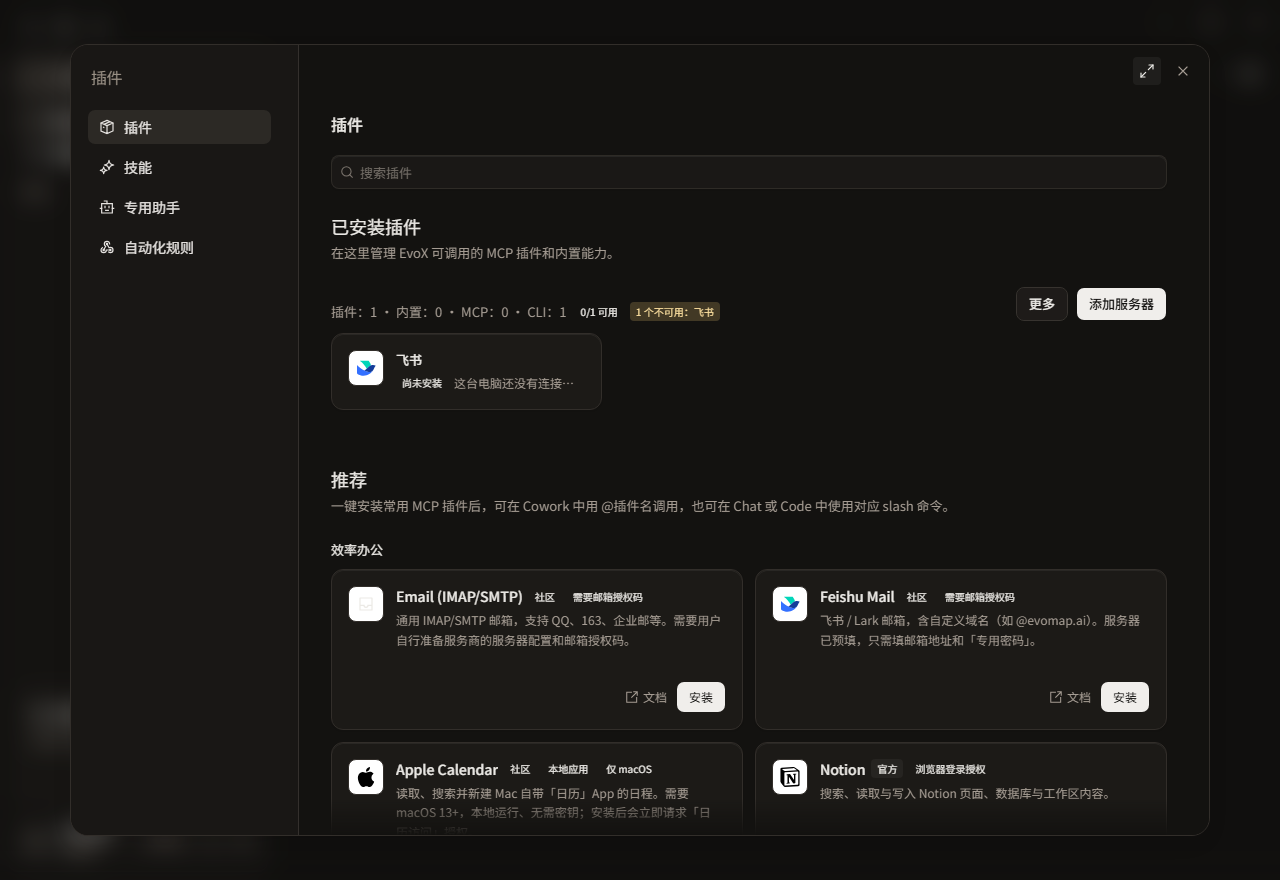
Manage built-in plugins, custom plugins, and MCP servers in the extension-management interface. Installation alone is not enough: check connection status and available tools too.
Extensions
Manage plugins available in conversations. Enable or disable them at any time.
Recommended
- Installed: Added to the environment; connect the required accounts or services separately.
- Connected: A service connection is established; check which tools it exposes.
- Available or ready: Required preparation is complete. Individual tasks still depend on account permissions, file scope, and approvals.
- Unavailable: Read the status details, check configuration, credentials, processes, or network access, then test again.
The illustrated statuses explain the interface. They do not indicate what is installed or connected on your device.
Prepare a ready plugin
Complete installation, account connection, and tool checks in Plugins and app connections. This guide starts with ready tools and covers task delivery and result verification.
Check the connection needed by the task
Before calling tools, check the account, target project or folder, and required operations. See Plugins and app connections for setup and credentials, or MCP servers for manual servers.
Use plugins in tasks
Describe the task
State the goal, source, and scope so EvoX can work with the available tools. For example:
Find this week's updated project notes in the connected document service. Summarize the titles and contents with source links. Read only; do not change the originals.
For external writes, identify the destination and approval point:
Draft an update from these notes. Show it to me first, and write it to the specified document only after confirmation.
These illustrate how to request work. The plugin must expose the corresponding read or write tools to perform it.
Select a plugin explicitly
Cowork can select plugins from its plugin list. In Chat and Code, use the @plugin mention, /mcp, or plugin-specific command exposed by that entry point and plugin declaration.
When several services can handle similar work, name the connection, project, or folder to avoid ambiguity. If a plugin is disabled, disconnected, or missing credentials, repair that connection before continuing.
Inspect MCP and skills
Use /mcp to open the unified MCP status panel and inspect server connections. In Code, /skills opens skill management.
Skills supply reusable instructions; MCP servers supply callable tools. They can work together, but the skill manager is not the plugin directory and does not grant external-service access.
Distinguish missing, disabled, and disconnected plugins
When a tool is missing, check the plugin state before choosing a recovery action. An installed plugin with a failed connection does not need to be installed again.
| State | Recovery |
|---|---|
| Not installed | Add it from the directory, then configure its connection |
| Disabled | Enable it in the installed list; complete provider setup first when required |
| Enabled but connection failed | Check the local service, network, account, and credentials; repair and test again |
| Status refresh failed | Retry the refresh and obtain a current result before judging availability |
A retained status after a failed refresh describes an earlier connection result. After reconnecting, check that the tool list includes the operation needed for this task before continuing.
Permissions and data scope
Installing a plugin does not authorize every action. Reading, modifying, sending, and publishing are distinct operations to review.
- Account scope: Access is limited to resources authorized for the connected account. Project membership does not automatically grant account permissions.
- Tool scope: A plugin can call only the tools it exposes. A document plugin does not imply control of an entire application.
- Data sharing: Check which text, files, or images will be sent to a service.
- Writes: Sending, deleting, publishing, purchasing, and creating remote assets should retain explicit approval.
Before using image and speech plugins, complete their provider configuration and check their billing terms. See Image generation and Voice.
Manage connections after a task
Inspect outputs, write records, and scope for unintended changes or sends. Follow Disable or remove when finished; local deactivation and service-side revocation are separate.
Troubleshoot common problems
| Symptom | Check first | Next step |
|---|---|---|
| No tools after installation | Whether the plugin is enabled and connected | Inspect details or /mcp for status and tools |
| Connection test fails | Credentials, address, network, and local server launch configuration | Correct the settings and test again |
| Connected but files are inaccessible | Account, project, and file permissions | Confirm the resource belongs to an authorized connection and specify its source |
| Reads work but writes fail | Available write tools and account write permissions | Check authorization and approval; a successful read is not write permission |
| Image or speech calls fail | Provider configuration, credentials, and cost-related messages | Follow the relevant feature guide; do not assume another provider will be selected automatically |
Next steps
- Skills and plugins: Concepts and introductory use.
- Permissions: Task approval boundaries.
- Settings: Service and product configuration.