


Projects and chats
In EvoX, you can start an independent chat or choose a project and keep related work together over time. Projects are useful when work spans multiple conversations, standing rules, folders, or ongoing deliverables. Use an independent chat for a one-off request.
Choose a project or start a chat
- On the Cowork surface, choose an existing project or create one before starting a conversation.
- A new conversation is filed under the selected project when its first message is sent. Switching the current project does not silently move a conversation that has already started.
- When its ownership needs to change, drag a Cowork conversation into another project. Tasks and artifacts bound to that conversation move with it.
- When the work is independent and needs no project rules or folders, start a new chat directly.
Work inside a project
A project is more than a folder of conversations. An EvoX Cowork project can bring together:
- Related conversations and tasks: the project view collects the conversations, tasks, and artifacts filed under that project.
- Working rules: add standing rules and enable or disable them individually. Cowork conversations filed under the project use its currently enabled rules.
- Authorized folders: connect one or more local folders to define the file scope available to the project.
- Artifact destination: choose an authorized folder for outputs. Without an explicit selection, the only authorized folder takes priority; otherwise, outputs use the project's managed directory. See Local projects for directory selection and relocation.
- Project details: the project wall and detail view provide access to project content, folders, working rules, and related results.
Each conversation still keeps its own transcript. A project supplies project-level rules, file scope, and ownership, but it does not copy every past message into every other conversation. Provide any specific source material again when the current conversation needs it.
See Project working rules for adding, toggling, and verifying rules.
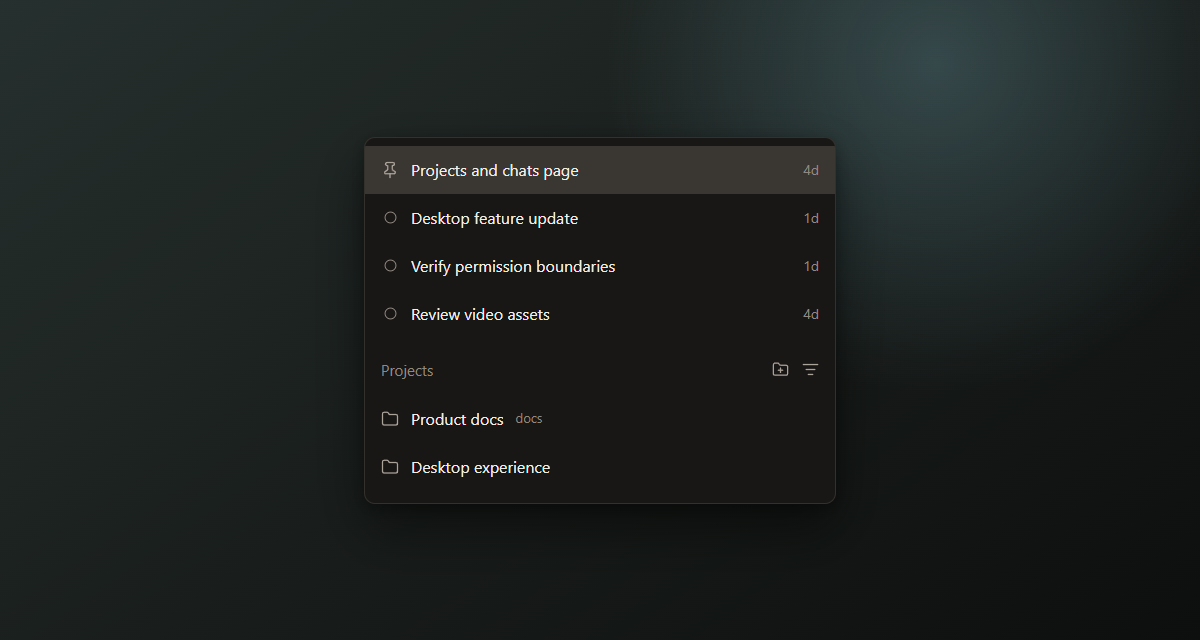
Organize projects and chats
To keep active work visible, you can:
- Rename projects or conversations so their titles reflect the current work.
- Pin projects or conversations, and drag pinned conversations into the preferred order.
- Search conversations globally by title or transcript text across Chat, Cowork, and Code.
- Move Cowork conversations by dragging them into a target project together with their related results.
- Archive and restore completed projects or conversations. Archiving is not the same as deleting.
- Delete conversations that are no longer needed. Deletion is destructive and should be used only after confirming the conversation does not need to be recovered.
Use local folders and code repositories
A Cowork project can connect local source folders; Code tasks select a directory or Git repository as a workspace. Project organization determines where work belongs; folder setup determines what files can be read or changed and where results are saved. See Local projects for connecting folders, reviewing outputs, parallel edits, and path recovery.
Start a chat without a project
When the work is independent and does not need shared project rules, authorized folders, or artifact ownership, create a new conversation in Chat. Chat is suitable for questions, analysis of a single source, and one-off tasks, and can use the files, images, skills, and plugins available to that conversation.
Bring in files, images, skills, and plugins
- Add files or images to the relevant conversation so EvoX can read and process them for the current request.
- Invoke installed skills from Chat, Cowork, or Code surfaces that provide a skills entry point.
- Use plugins to connect external services. What a plugin can read or do depends on its capabilities, connection state, and permission settings.
- Project ownership does not grant new permissions or make unauthorized folders and external services accessible.
Limits and considerations
- After a project is archived, its rules and authorized folders no longer act as active project context. Restore the project when that context is needed again.
- Projects, conversations, folders, and workspaces are separate layers. Filing conversations under one project does not make every conversation read all other transcripts automatically.
- Worktrees, multi-root workspaces, and code-review tools should be used only in Code mode and when supported by the current repository.
- Before deletion, external writes, publishing, credential use, or production changes, review the permissions, confirmation points, and recovery path.
- Choose the work mode for your task and configure the required skills, plugins, and account connections before use.
Organize conversation history
Open Settings > Conversation history and choose an action for your purpose:
- Set a conversation aside: archive it and restore it from the archive when needed.
- Recover a deleted conversation: check the trash and select the conversation to restore.
- Delete permanently: verify the conversation and the scope in the confirmation dialog before proceeding.
- Restore session state: use the session snapshot entry. This is not a project-file backup and does not establish that workspace files have been restored.
Deleting chats, clearing profile fields, and managing memory entries are separate operations. To correct lasting background, open Memory management.
Next steps
Continue with File handling, Skills and plugins, and Permissions.
EvoX Docs · features · Workflows